Frequently Asked Questions (FAQs)
How do I add a lawyer to review my document?
When a document is worth a human look - usually before you sign - GitLaw Agent asks in the chat whether you want to add a lawyer. You have three options:
- Invite your lawyer - send the document to a lawyer you already work with.
- Find me a lawyer - our concierge team matches you with a lawyer.
- Skip - carry on without one. You can change your mind later.

Invite your lawyer
- Click Invite your lawyer in the chat.
- Enter your lawyer's email address. You can add more than one person.
- Check what they get access to. By default it's just this document - none of your others.
- Review the message. GitLaw drafts it from your GitLaw memory. Edit it as much as you like.
- Click Preview what they'll see to check the email, then Send invite.
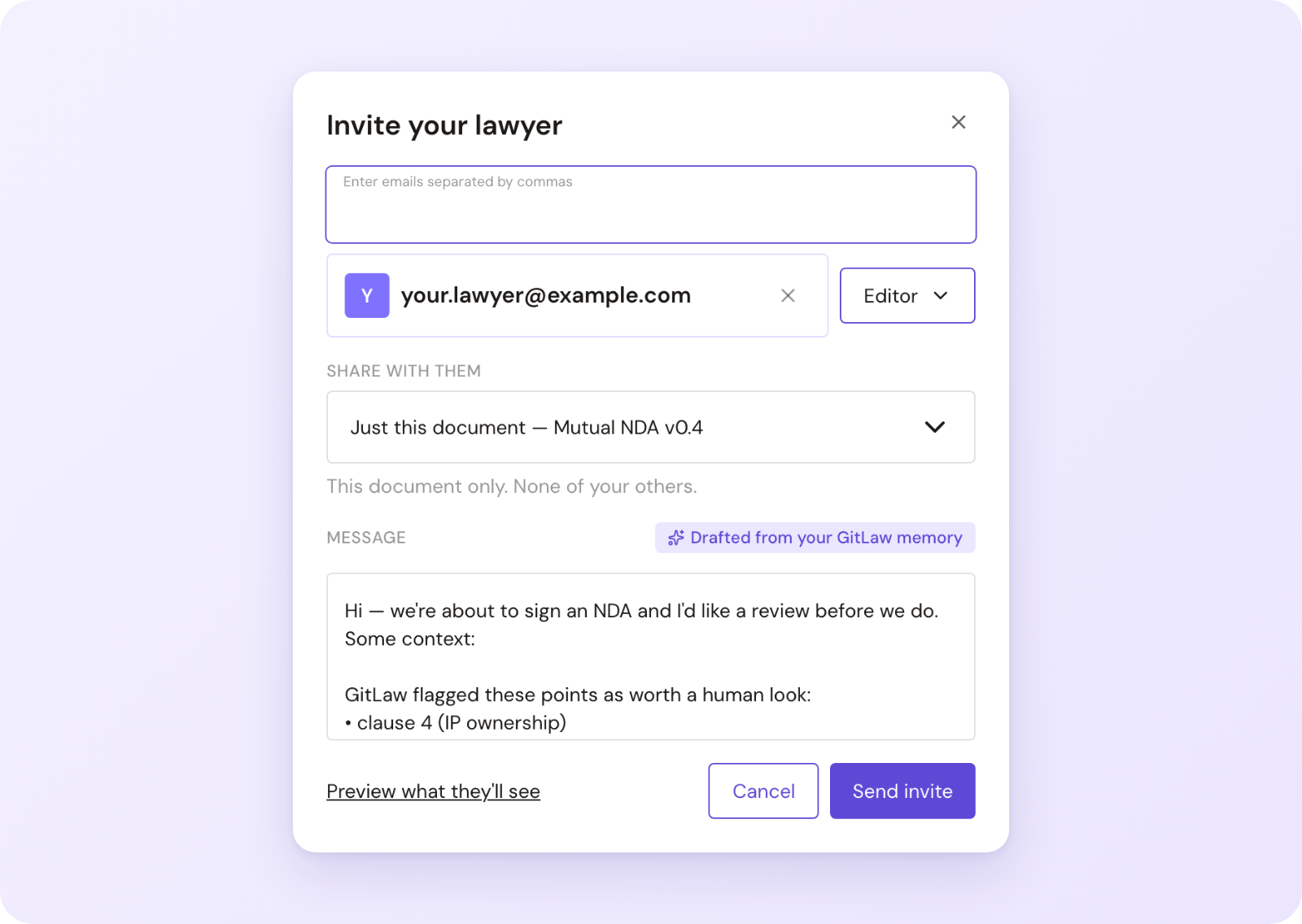
Your lawyer gets an email with your message and a link to open the document. They work on it from their own GitLaw organisation, as an editor.
Find me a lawyer
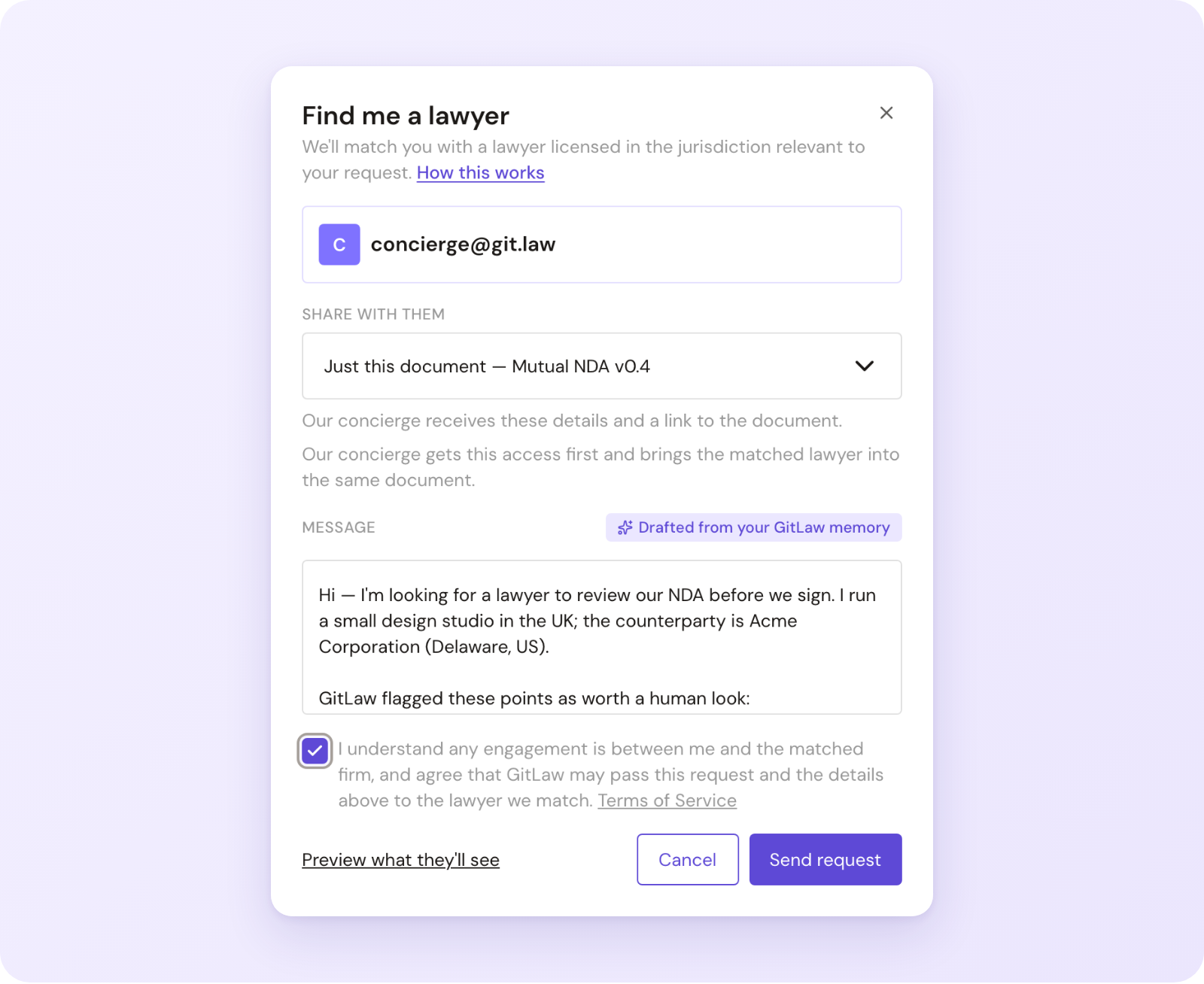
- Click Find me a lawyer in the chat.
- Check the access and review the drafted message - add any context that helps us find the right person, like where you and the other side are based.
- Tick the box confirming that any engagement is between you and the lawyer we match.
- Click Get a free quote.
What happens next:
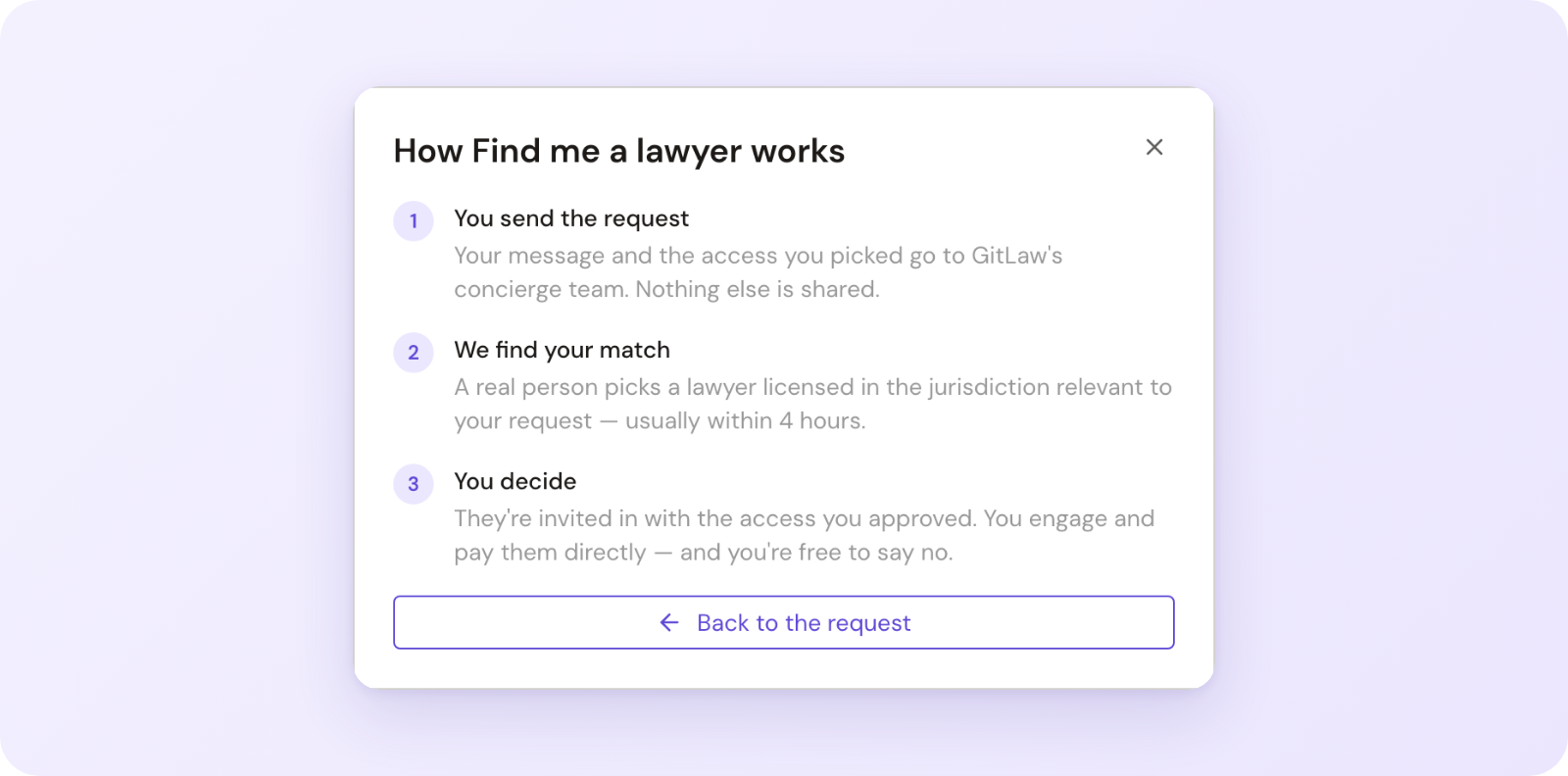
- You send the request. Your message and the access you picked go to GitLaw's concierge team. Nothing else is shared.
- We find your match. A real person picks a lawyer licensed in the jurisdiction relevant to your request - usually within 4 hours. We'll email you.
- You decide. The lawyer is invited in with the access you approved. You engage and pay them directly - and you're free to say no.
After you've chosen
The offer in the chat shrinks to a single line - Invited your lawyer, Asked us to find a lawyer or Skipped lawyer review. Click that line to see the options again. If you skipped, you can still invite your lawyer or ask us to find one from there.

No document in the chat?
GitLaw Agent can offer a lawyer when no document is attached. Your lawyer - or our concierge - receives your message only, and can reply by email.
Who is the lawyer working for?
You. GitLaw introduces you and shares the access you approve, but isn't a law firm and isn't a party to the engagement. Fees, the engagement letter and any client-relationship paperwork are between you and the lawyer. Check their credentials and suitability for your matter before you rely on their advice.
Removing a lawyer's access
Remove them from the document's sharing settings, the same as anyone else you've shared with.