GitLaw How-To guides
Access GitLaw Editor
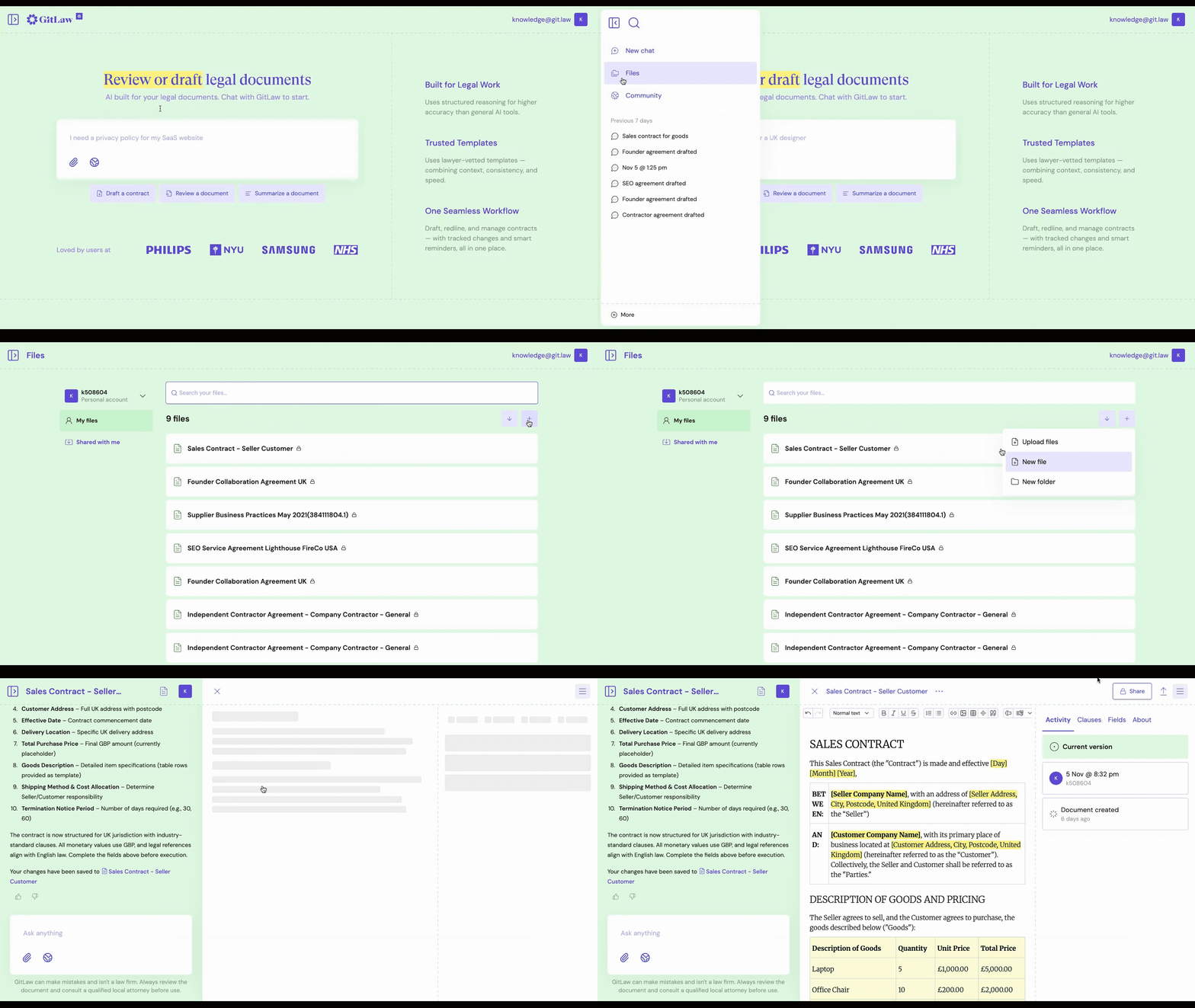
To open the GitLaw Editor from your files, click Files in the left sidebar, then click an existing file or create a New File. When you are drafting in a chat with the Agent, the document opens in the editor alongside the chat, and the … menu in the top right gives you Version history to view earlier versions.
Before you start: a GitLaw account.
How do I open the GitLaw Editor from my files?
GitLaw includes a powerful editor designed specifically for legal documents, with features like smart fields and help text to make drafting more precise and efficient. If you are working directly from your account:
- Open your files: click Files in the left sidebar.
- Select or create a document: this page lists all documents in your account. Click an existing file to open it, or create New File to start fresh.
How do I open the Editor from GitLaw Chat?
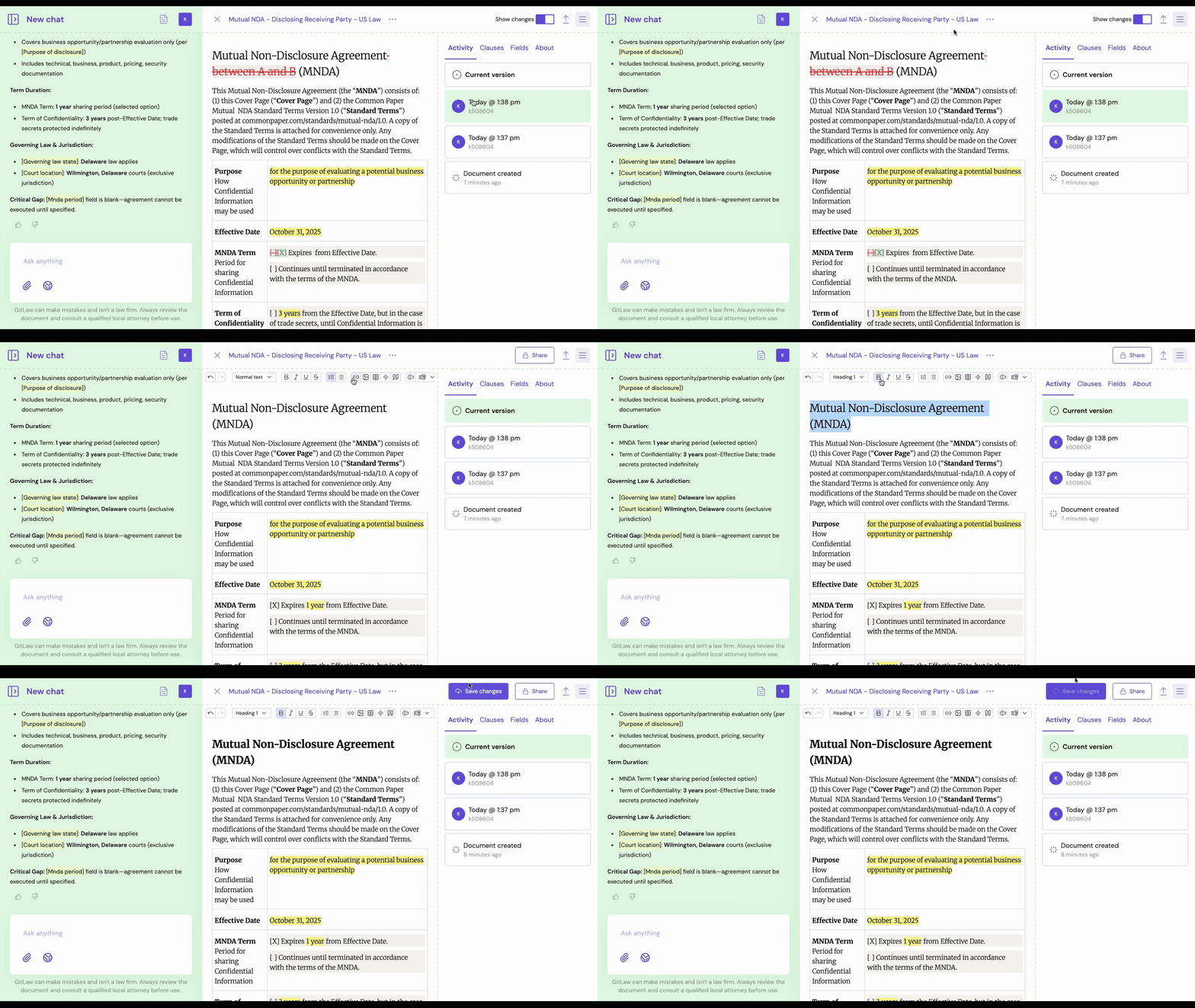
If you are drafting through the Agent, your document opens in the editor alongside the chat. Open the … menu in the top right of the document and choose Version history to view earlier versions.
Navigating the Editor layout
Once inside the editor, you will see:
- Main pane: displays your document for editing.
- Left sidebar: shows the chat history.
- Top toolbar: contains formatting and styling controls.
- … menu (top right): opens Document contents, Document fields, Document info, Version history and Find.
Frequently asked questions
Can I edit an Agent draft in the Editor?
Yes. When you draft through the Agent, the document opens in the editor alongside the chat, so you can edit it directly. To view earlier versions, open the … menu in the top right and choose Version history.
Where are my documents listed?
Under Files in the left sidebar. The page lists all documents in your account.
Related articles
Reviewed by the GitLaw team. Last updated 29 July 2026.