GitLaw How-To guides
Create a draft document using Agent
To create a draft with GitLaw Agent, describe the contract you want in plain language, for example "Draft a mutual NDA between two US-based startups". Include the parties, jurisdiction, duration and any special clauses. The Agent produces a draft from lawyer-vetted templates, asks you to confirm its assumptions, and updates the draft as you request changes.
Before you start: a GitLaw account, and your jurisdiction set for the best first draft.
How do I draft a contract with GitLaw Agent?
You can chat with GitLaw Agent to create a draft document using plain-language instructions:
- Describe your needs: type a clear description of the draft contract you want. For example, "Draft a mutual NDA between two US-based startups" or "I need a privacy policy for my SaaS website".
- Specify key terms: include parties, jurisdiction, duration and any special clauses you require (e.g. arbitration, confidentiality). The more detail you provide, the closer the draft will be to your needs.
- Confirm assumptions and reasoning: the Agent may ask you to confirm details it has reasoned or assumed as it finalises the draft.
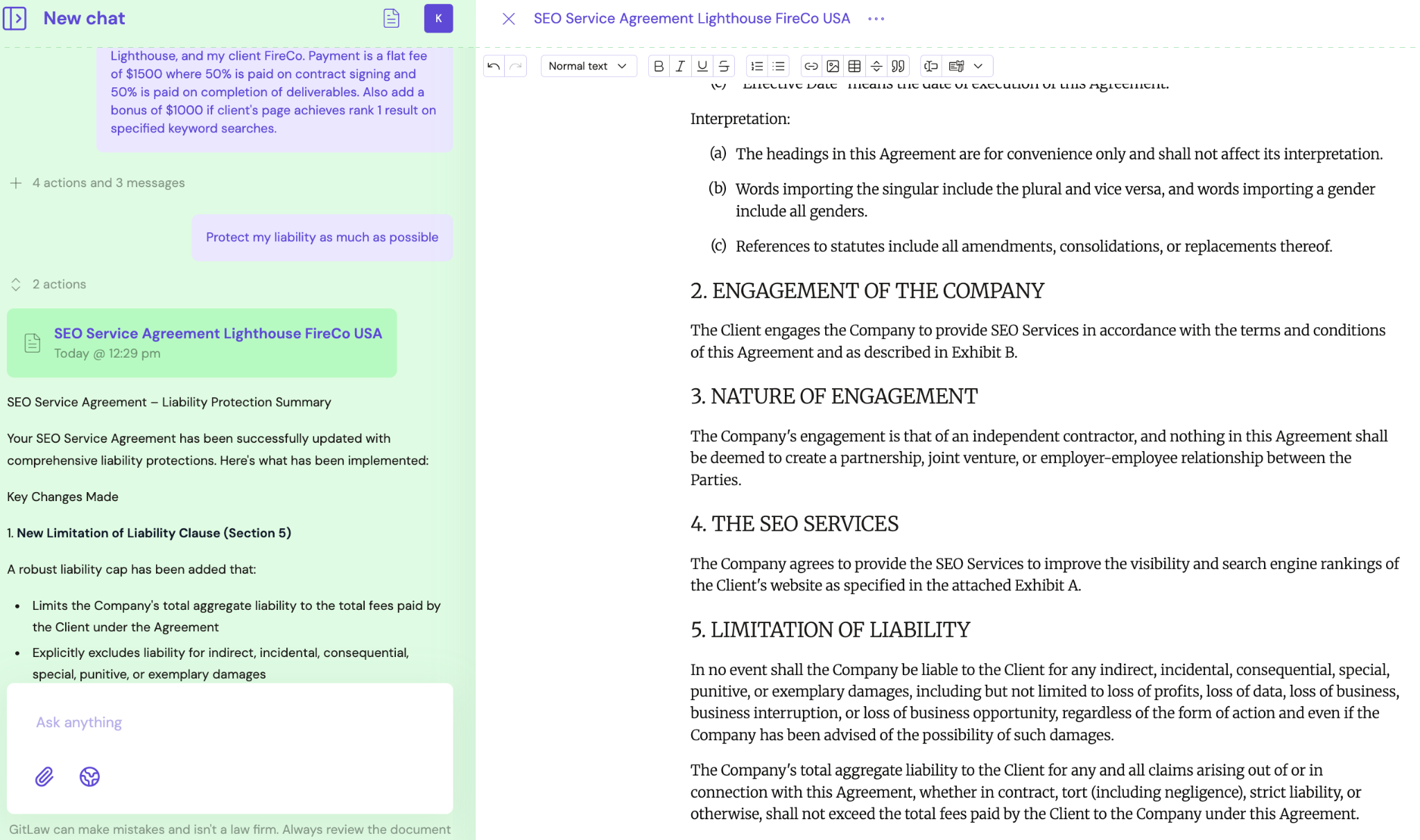
- Review the draft: the Agent produces a contract based on trusted templates and displays it in the chat. GitLaw uses lawyer-vetted templates and structured reasoning to deliver higher accuracy than generic AI tools. Scroll through the draft to ensure it covers all necessary sections, and make sure you read through the key assumptions you have confirmed. If there is no match to a high-confidence vetted template, the Agent produces a draft from scratch based on public information and your specified key terms.
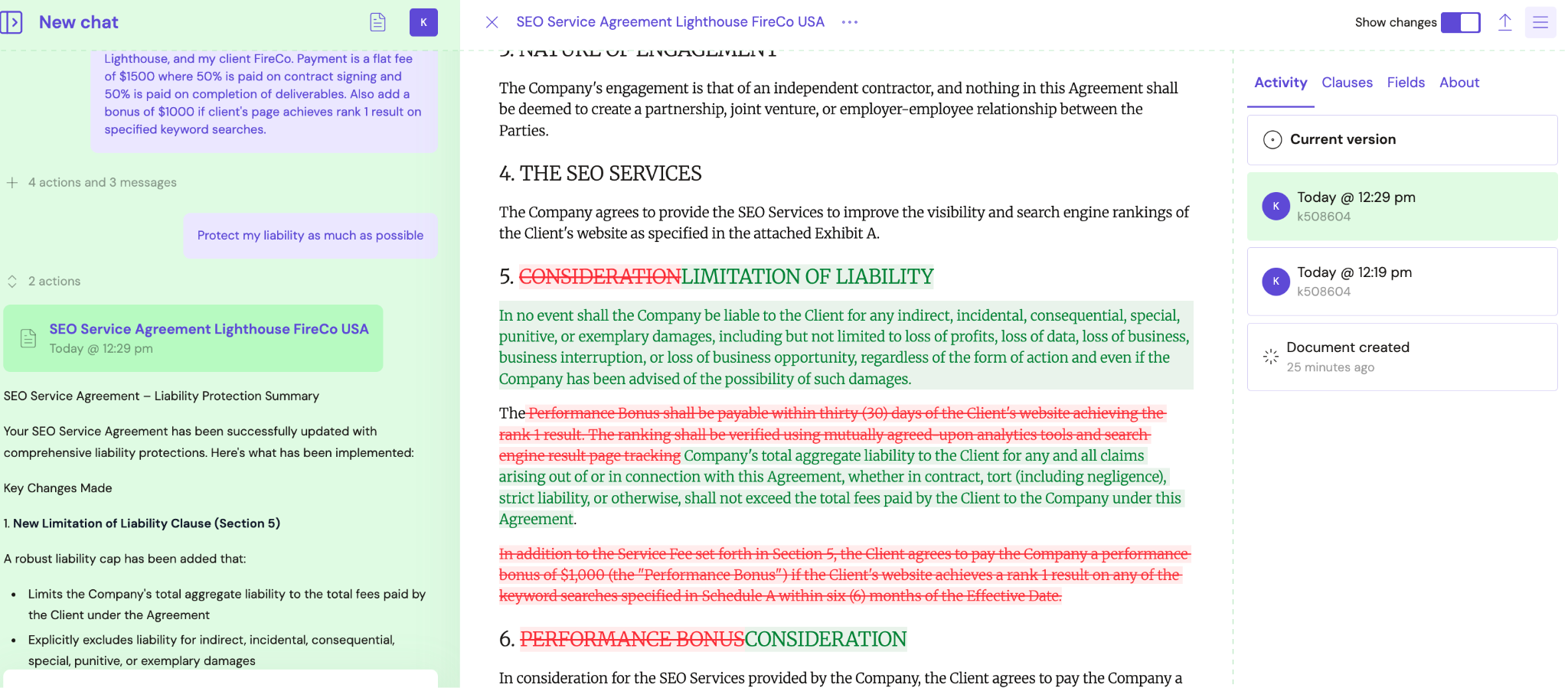
- Refine the draft: ask follow-up questions or request changes, for example "Add a clause limiting liability to $10,000" or "Remove the non-compete clause". The Agent updates the contract and shows a new version.
- Your draft saves itself: there is no save button. The editor saves as you work - the header shows Saving… while it writes and Saved when it is done.
- Share the draft: your GitLaw draft is ready to share with collaborators. For faster collaboration, share via email so any changes to the draft can be tracked and maintained on GitLaw. You can also export it as a PDF or DOCX file.

Best practices for working with GitLaw Agent
- Be specific: provide clear instructions and important details to get the best results. Vague requests may require multiple refinements.
- Verify outputs: the Agent is based on trusted templates, but you should always review the draft for legal accuracy and compliance with local laws. Involve a human lawyer if necessary.
- Iterate: use the chat to refine the document. Ask follow-up questions or request alternative language until the document meets your needs.
- Maintain contractual confidentiality: GitLaw stores data securely, but you are responsible for complying with your contractual obligations.
- Leverage advanced formatting and version control: when working on the document, take advantage of GitLaw's advanced edit and versioning features to format, track changes and collaborate with others.
Frequently asked questions
What happens if there is no template for my contract?
If there is no match to a high-confidence vetted template, the Agent produces a draft from scratch based on public information and your specified key terms.
How do I get a better first draft from the Agent?
Be specific: include the parties, jurisdiction, duration and any special clauses in your request, and set your jurisdiction before you start.
Related articles
Reviewed by the GitLaw team. Last updated 29 July 2026.