GitLaw How-To guides
Access GitLaw Agent
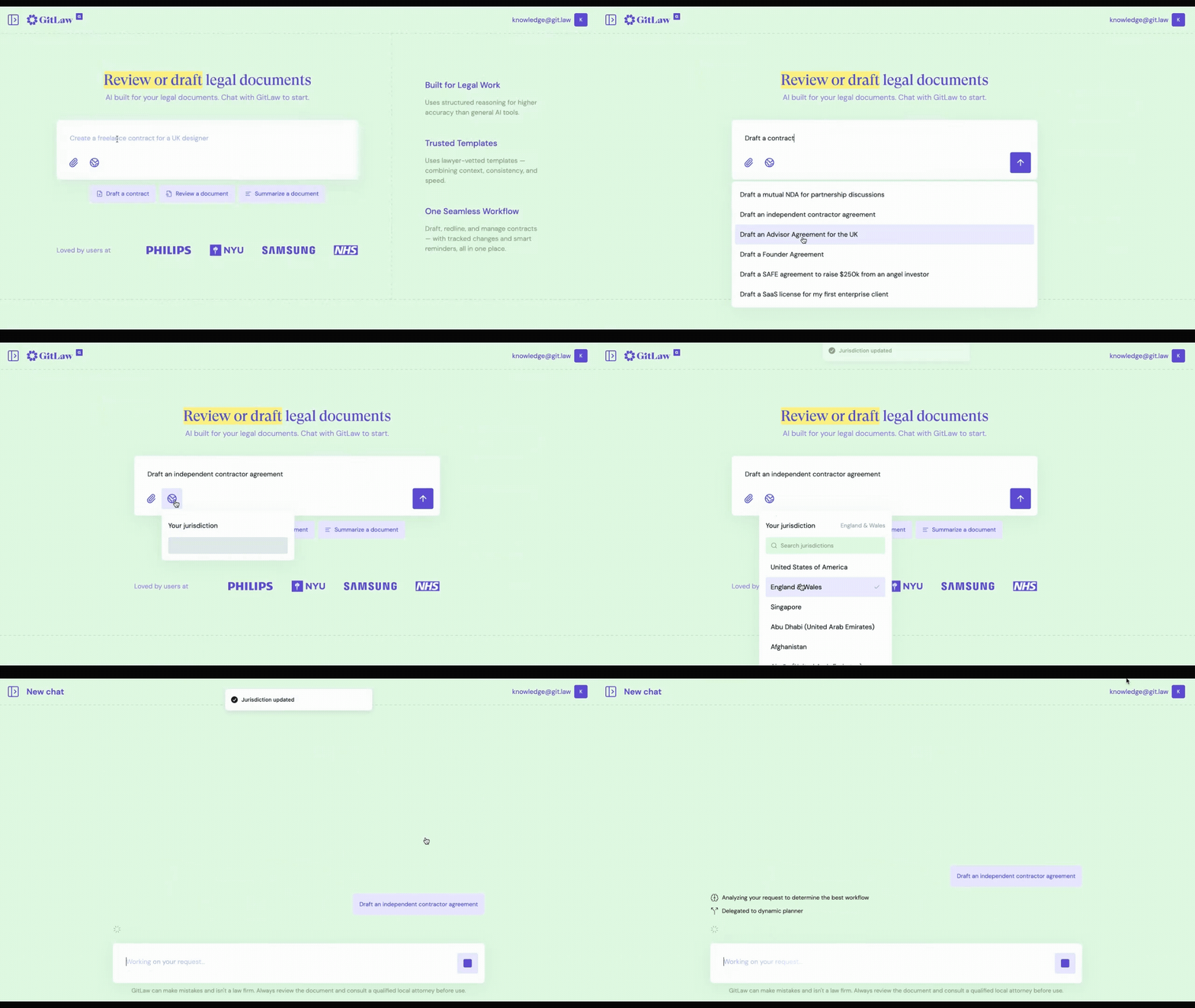
To access GitLaw Agent, sign in at git.law and click New Chat in the left side panel. Type your request in plain language, or pick one of the prompt suggestions at the bottom of the chat. The Agent drafts or reviews legal documents from your instructions and asks for confirmation where required.
Before you start: a GitLaw account. If you do not have one yet, see Set up your GitLaw account.
How do I access GitLaw Agent?
GitLaw combines lawyer-vetted templates with an AI agent that can draft or review legal documents based on plain-language instructions. To start your first chat:
- Sign up or log in to your GitLaw account.
- Start a new chat from git.law, or click New Chat in the left side panel.
- Type your prompt in the chat interface. You will see a blank conversation area with a few prompt suggestions at the bottom. The Agent understands plain-language instructions and will ask for confirmations where required.
.gif)
Set your jurisdiction before you start
Always set your jurisdiction before starting a chat: it gives you the best quality first drafts and reviews, because the Agent tailors its output to the law that applies to you. See how to set your jurisdiction.
Frequently asked questions
Do I need an account to use GitLaw Agent?
Yes. GitLaw Agent is available to signed-in users. Sign up at git.law, then open a new chat to start.
Will the Agent act without asking me?
No. The Agent understands plain-language instructions and will ask for confirmations where required before proceeding.
Related articles
Reviewed by the GitLaw team. Last updated 29 July 2026.